Inline Compare
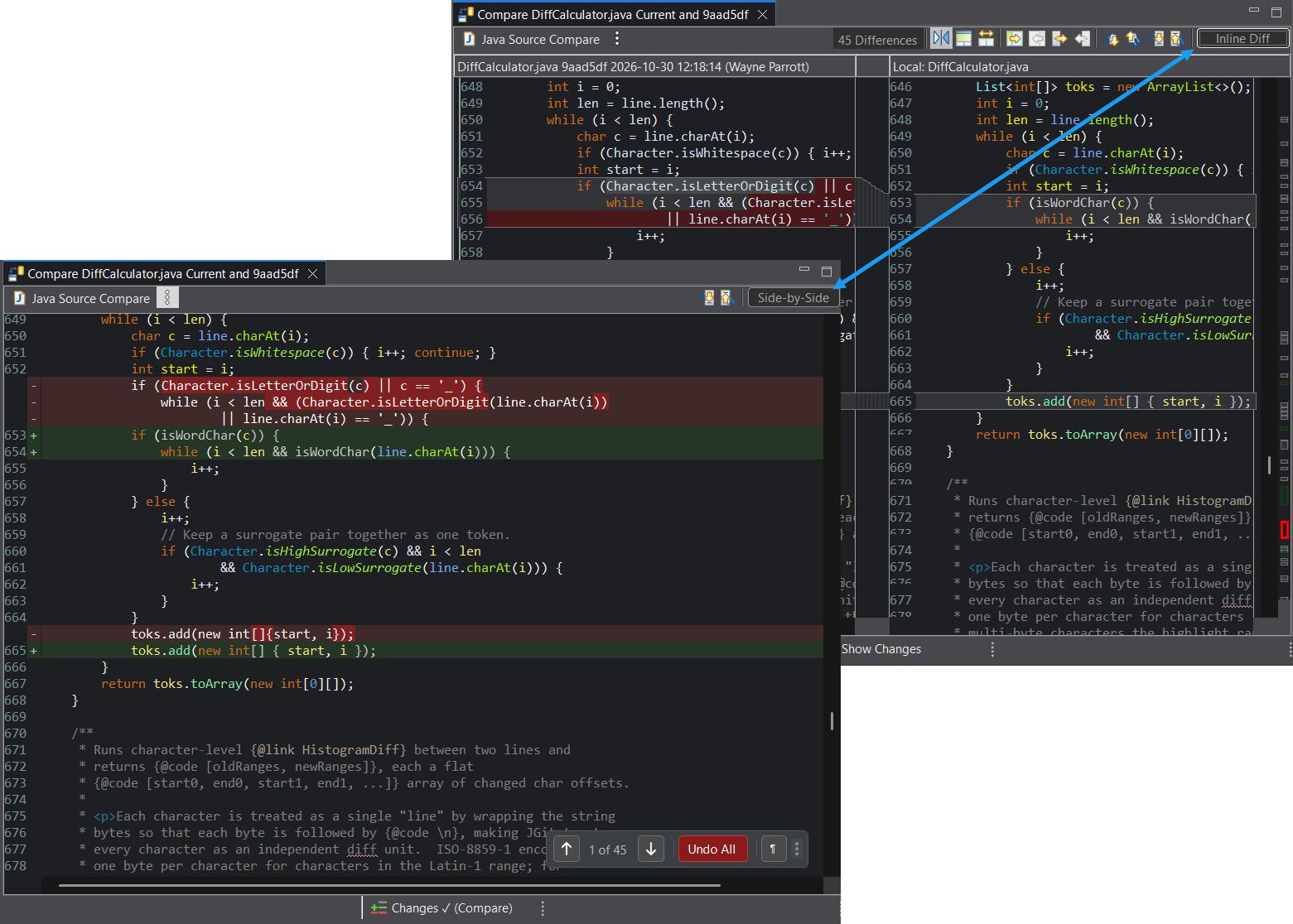
Inline Compare displays an Eclipse comparison in a single pane, so you can read changes from top to bottom. Switch between inline and side-by-side views with one command.
How to use it
- Open a comparison in Eclipse's Compare Editor.
- Click Inline Diff in the Compare Editor's toolbar to switch to a single pane.
- Read added lines in green and deleted lines as red gaps. Use the floating navigator to move between changes.
- Click Side-by-Side (the same button) to return to the two-pane view.
The inline view keeps syntax coloring and matches your editor's theme and font.
The focus tools from Live Review work here too: hide changes, filter whitespace-only changes with ¶, and dim changes not in focus.
The floating navigator's ⋮ button lets you show or hide changes and open Inline Diff settings. In the inline view, right-click the text and choose Show Inline Diff Markers (+/-/~) to mark changed lines in the margin.
Configuration
The review appearance follows your Eclipse editor settings, including the theme, font, and line numbers.
Preferences
Open General > Compare/Patch > Inline Diff - Compare in Eclipse preferences.
Enable Open Compare Editor in inline diff mode by default to start new comparisons in the single-pane view.
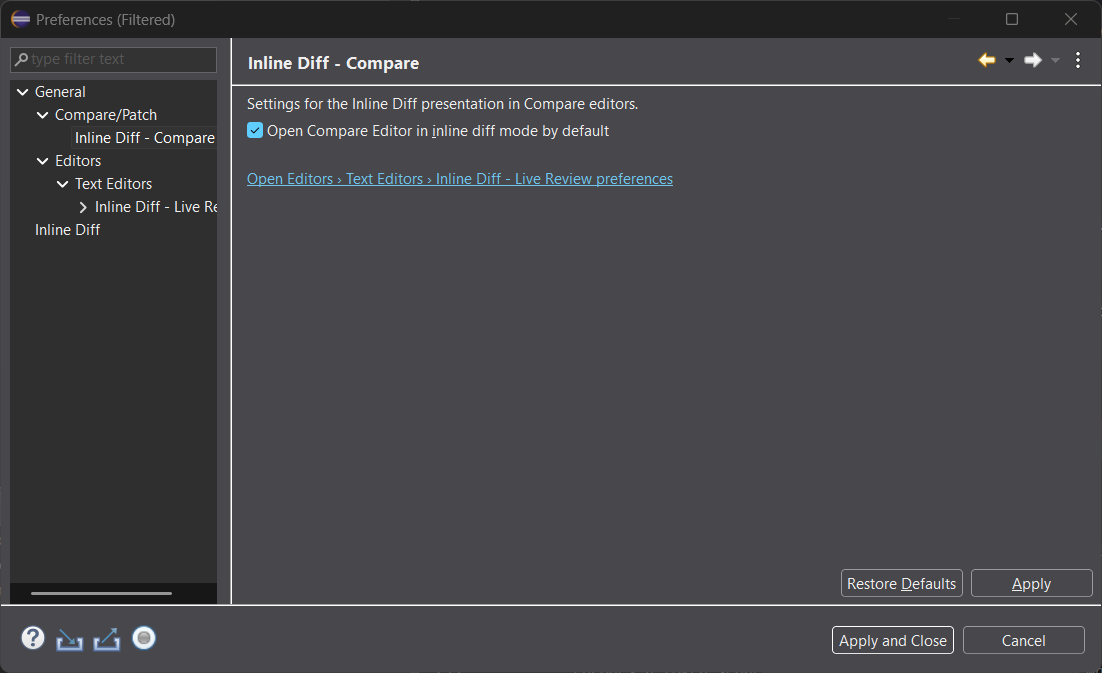
The link on this page opens the Live Review preferences for additional editor review settings.