Live Review
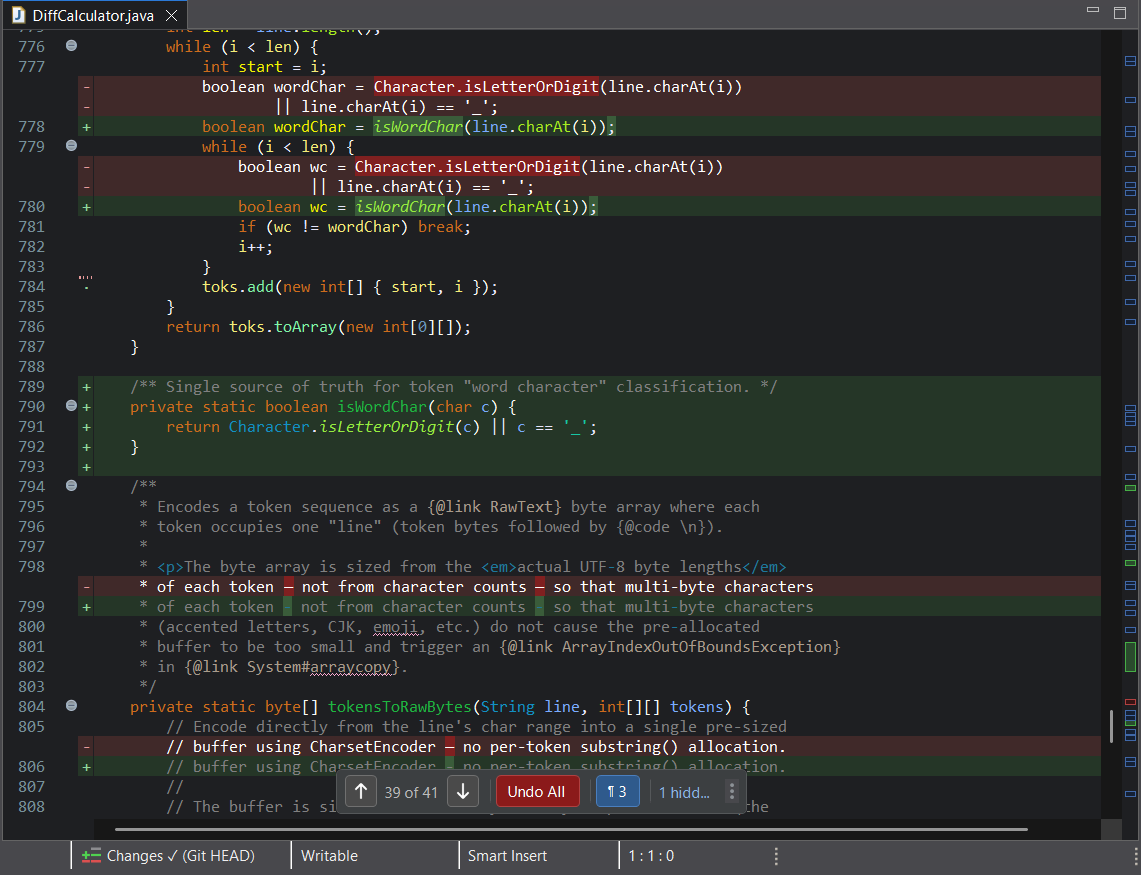
Live Review shows your uncommitted changes directly in the text editor you are working in. Use it to check your own edits, or an AI agent's, before committing. It works in every Eclipse text editor, for any language.
How to use it
- Open the file you want to review.
- Click Show Changes in the Eclipse status bar.
- Read the changes top to bottom, or use the floating navigator to step through them.
- Use Undo beside a change to restore that change's original text.
Click the status bar item again to turn off the review. Use Refresh Changes to recompute the comparison after the file changes.
Reading changes
- Green backgrounds mark added lines.
- Red gaps mark deleted lines, shown where they used to be.
- Word highlighting picks out the exact words that changed within a replaced line.
- Change markers (+, -) in the left margin identify changed lines.
Syntax coloring stays visible, and the review matches your editor's theme, font, and line numbers. Inline Compare and Time Machine use the same display.
Undoing changes
The Undo button beside the current change restores that change to the baseline's text; the rest of your edits stay as they are. Undo All on the navigator does the same for every visible change.
Focusing on what matters
Large diffs are easier to read when you can set changes aside or bring one forward.
Hide a change
Point at a change and click the small minimize icon in its top-right corner to hide it. Alt+click the icon to hide every other change instead, so only the one you are reading remains. Clicking a change's marker in the left margin hides it too.
A hidden change leaves a dotted marker in the left margin. Hover over the marker to see how many lines were added and removed, and click it to show the change again. The navigator counts hidden changes: click N hidden to show them all. Hiding only affects the view; your file is unchanged.
Hide whitespace-only changes
Re-indented code, trailing spaces, re-wrapped lines, and blank-line changes can bury the edits that matter. Click ¶ on the navigator to hide changes that only touch whitespace; the number beside it counts them. Click ¶ again, or a whitespace-only change's margin marker, to show them.
To hide whitespace-only changes every time a review starts, turn on Hide whitespace-only changes by default in the preferences. It is off by default, because whitespace matters in some languages, such as Python, YAML, and Makefiles.
Dim changes not in focus
Turn on Dim Changes Not in Focus in the Inline Diff menu to draw every change except the one you are working on in faint colors. The focused change is the one at the caret, under the pointer, or selected with the navigator. When none is, the navigator's current change stays at full strength, so there is always one change you can read.
The navigator
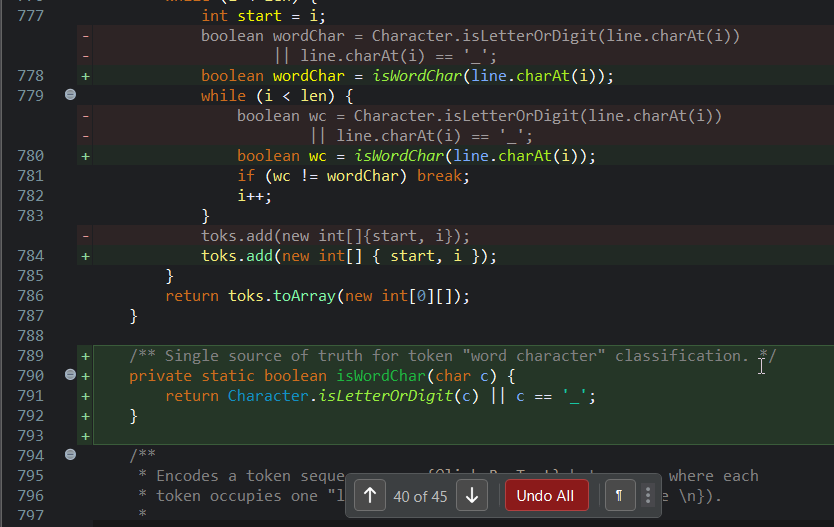
The floating navigator at the bottom of the editor shows where you are (for example 2 of 5), with arrows to move to the previous or next change. It also has:
- Undo All, while there are changes and the file is editable.
- ¶, the whitespace-only filter.
- N hidden, shown while changes are hidden; click to show them all.
- ⋮, which opens the Inline Diff menu. Right-clicking the navigator opens it too.
Drag the navigator to move it; double-click it to put it back.
The Inline Diff menu
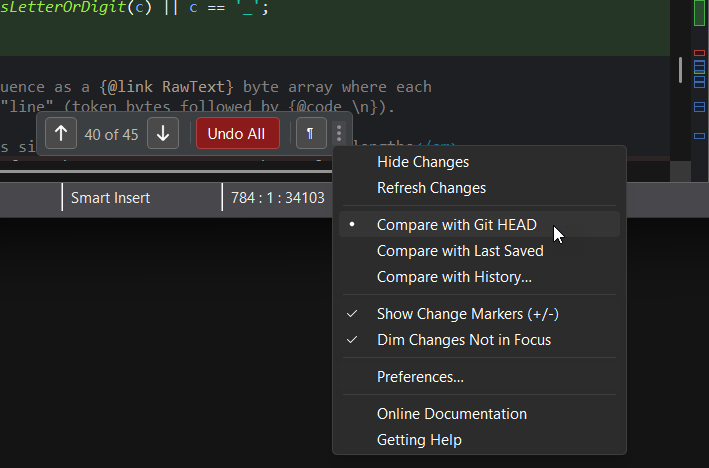
Open the menu from the navigator's ⋮, by right-clicking the Changes status bar item, or from Edit > Inline Diff. It has:
- Show Changes / Hide Changes and Refresh Changes.
- The baselines (below).
- Show Change Markers (+/-), which shows or hides the +/- markers in the left margin.
- Dim Changes Not in Focus.
- Preferences..., Online Documentation, and Getting Help.
Choose a baseline
A baseline is the version you compare your current content against.
| Baseline | Shows |
|---|---|
| Compare with Git HEAD | Changes since the last commit, including unsaved edits. |
| Compare with Last Saved | Unsaved changes relative to the file on disk. |
| Compare with History... | Opens Time Machine to explore earlier versions. |
Preferences
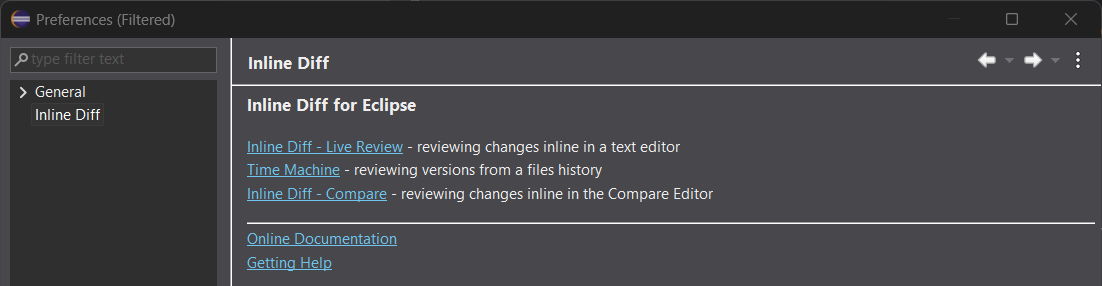
Select Preferences... from the Inline Diff menu, or open General > Editors > Text Editors > Inline Diff - Live Review in Eclipse preferences. The top-level Inline Diff preference page links to all Inline Diff settings.
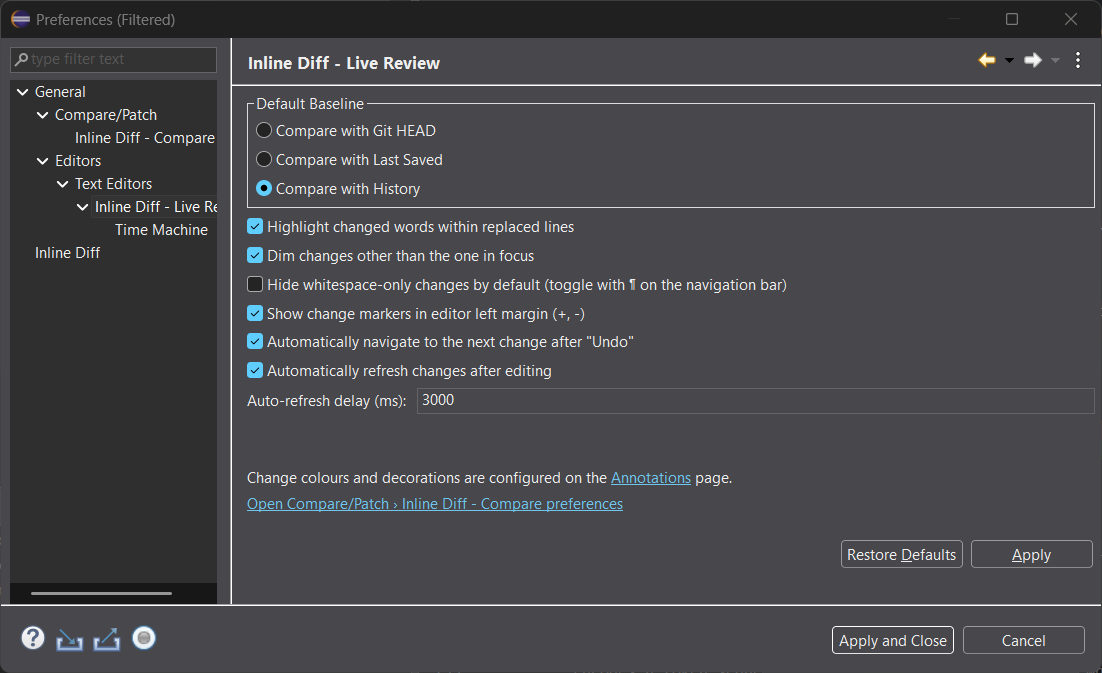
Use this page to choose the default baseline and adjust:
- Word highlighting within replaced lines.
- Dimming changes other than the one in focus.
- Hiding whitespace-only changes by default.
- Change markers in the editor's left margin.
- Automatic navigation to the next change after Undo.
- Automatic refresh after editing, and the refresh delay in milliseconds.
Use the Annotations link on this page to configure change colors and decorations.